
Blog
Odoo security: a verifiable self-hosting checklist
By The Ofleet team6 min read
Contents
Odoo security on your own server starts with an unreachable database manager, a single public HTTPS entry point and restricted administrator accounts. Then check that updates and backups actually work. A setting in odoo.conf proves little until you verify the running service.
This checklist targets Odoo 20, Community and Enterprise, checked against the documentation and source code on November 2, 2026. Set aside an hour for a first inspection, not for completing every repair or restore. Run the checks only against an instance you administer; none requires deleting a database.
Assign the hosting responsibilities first#
Self-hosting puts the operating system, PostgreSQL and public network exposure under your control. The Odoo deployment guide (nouvel onglet) is the baseline for the settings below. Odoo's cloud security commitments do not automatically apply to a server you rent elsewhere.
| Deployment | What you need to establish |
|---|---|
| Odoo Online | Configure users and access; use Odoo's hosted service if you do not need custom Python modules. |
| Odoo.sh | Check the platform's responsibilities separately from those of your custom code and integrations. |
| Your own server | Assign an owner for proxy rules, PostgreSQL, security updates and restore tests. |
| Another hosting platform | Verify what its published offer covers; do not assume application permissions are managed for you. |
The Odoo hosting guide helps choose between these models. Write down who changes each layer before changing production. An unassigned task usually stays undone.
Odoo security starts at the database manager#
The database manager can create, back up and delete databases. Keep it off the public internet. Its master password, admin_passwd, is separate from an Odoo user's password and the PostgreSQL connection password.
For a dedicated, single-database deployment, adapt this Odoo 20 configuration to your actual database name:
[options]
db_name = acme_prod
dbfilter = ^acme_prod$
list_db = False
Set admin_passwd separately to a long, randomly generated secret. Restrict access to the configuration file; never paste its contents into a support ticket. Reload or restart using your deployment's procedure, then check which configuration file the service actually loads. Test the database selection before disabling the list on an existing multi-database deployment.
dbfilter selects the database; it does not replace protection of management routes. In Odoo 20, the manager can still return an HTML page with list_db = False. A successful HTTP response therefore cannot tell you whether database operations are enabled.
Block the management routes at the reverse proxy as well. For this single-database example, add the following inside the existing Nginx HTTPS server block:
location ^~ /web/database {
    return 403;
}
Validate Nginx configuration before reloading it. Then, from outside the server:
curl -sS -o /dev/null -w '%{http_code}\n' \
  https://erp.example.com/web/database/manager
With this rule, expect 403, not a redirect to a working manager. Check /web/database/selector too: the rule intentionally blocks it. Keep any required database administration behind a separate, restricted access path.
CVE-2026-25137 (nouvel onglet) concerns NixOS packaging and an exposed manager whose password did not persist. Do not present it as a vulnerability affecting every Odoo installation. If you use that package, follow its advisory and inspect access logs for /web/database requests.
Expose HTTPS, not the backend ports#
Only enable proxy_mode when Odoo sits behind a trusted reverse proxy. That proxy must set the forwarded headers itself; clients must not bypass it and supply their own trusted-looking headers.
On a same-host proxy deployment, bind Odoo to loopback. With containers or separate hosts, restrict the backend network and firewall instead. Do not blindly copy a loopback address into a container that must accept traffic from another container.
In Odoo's multiprocess deployment, HTTP normally uses port 8069, and websocket traffic uses the gevent port, normally 8072. Route /websocket/ appropriately; the separate gevent port is not used in default threaded mode.
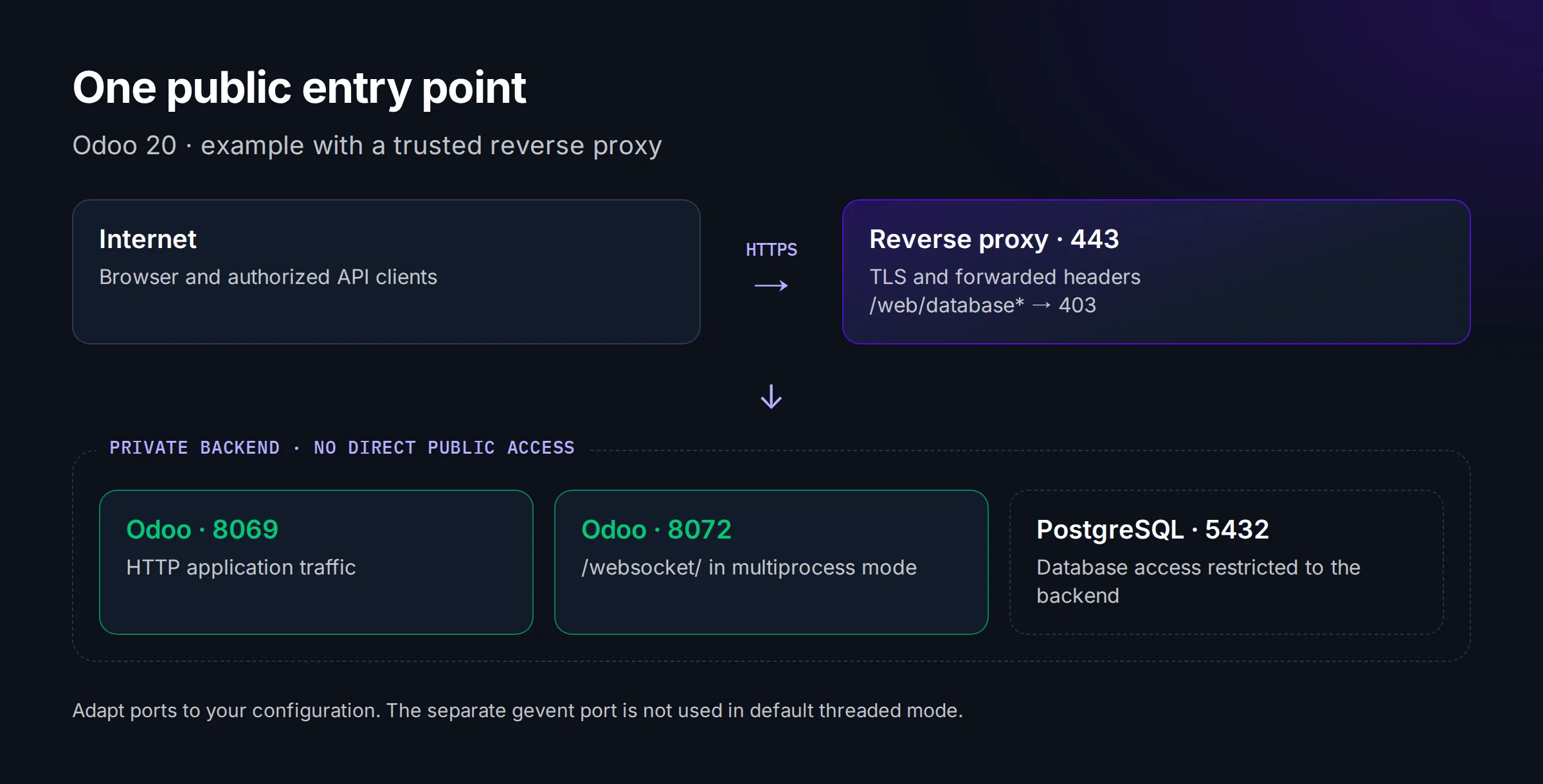
From an authorized external machine, check your server's actual address:
nmap -Pn -p 443,8069,8072,5432 SERVER_IPExpect HTTPS to be reachable and the backend/PostgreSQL ports to be closed or filtered from that network. Repeat for public IPv6 if configured. Also open the application in a browser: confirm a valid certificate, HTTPS redirection and working live notifications. An open 443 alone proves none of those.
Protect accounts and integration credentials#
Require two-factor authentication for staff, especially administrators. Odoo 20's two-factor authentication documentation (nouvel onglet) describes enforcement for employees only or all users. The latter also includes portal users. Test the choice with a separate account before rolling it out.
Use named administrator accounts and a documented recovery procedure, then check access with a normal user account: being unable to open Settings does not prove that record rules prevent access to another company's records. Test the records themselves.
Give integrations a dedicated user with only the required permissions. Inventory API credentials, revoke unused ones and test that the integration cannot access unrelated records. Never assume that enabling interactive 2FA also secures an already issued integration credential.
Patch the deployed code and its dependencies#
A deployment is patched when the running process uses the corrected code. Record the deployed revision or image digest, update your Odoo branch's builds, and maintain the operating system, PostgreSQL and third-party modules too.
Rehearse updates on an isolated copy with your custom modules, then restart production through your normal release procedure. Check the deployed revision again afterwards. Updating within a release and migrating a database to another Odoo version are different operations; do not substitute an untested version jump for a security patch.
Prove that a backup can be restored elsewhere#
Back up the database and filestore together. Odoo's deployment guide recommends daily backups copied to a remote archive server that the application server itself cannot access. Check retention and credentials, not just the last successful job notification.
Restore into an isolated environment with outbound email and integrations disabled. Open a record with an attachment and check that the file downloads. Record the elapsed recovery time and missing-data window; these measurements tell you whether your recovery objective is plausible.
The application PostgreSQL role must not be a superuser. Have a database administrator assess ownership and CREATEDB privileges before changing them; careless role changes can break maintenance or restores.
Keep an evidence-based checklist#
Save dated results beside the configuration, without secrets. If you want to compare these responsibilities with a self-service platform, try Ofleet and assess what you can configure yourself. Use the server requirements guide when preparing a separate test instance.
Read next
 odoohosting
Odoo server maintenance: tasks your team can own
Own your Odoo server maintenance: assign monitoring and backup tasks, test an isolated restore, and record evidence before the next production incident.November 5, 202610 min readBy The Ofleet teamRead article odoohosting
Odoo AWS: deploy on EC2 and budget for recovery
Odoo AWS deployment on EC2: choose PostgreSQL or RDS, protect internal ports, pair database and filestore backups, and calculate a dated monthly budget.November 5, 20268 min readBy The Ofleet teamRead article odoohosting
Odoo Docker: from Compose to a working restore
Odoo Docker with Compose: run Odoo 20, route websocket traffic, back up PostgreSQL and the filestore together, and check a restored attachment.November 3, 20269 min readBy The Ofleet teamRead article