
Blog
Odoo AWS: deploy on EC2 and budget for recovery
By The Ofleet team8 min read
Contents
An Odoo AWS deployment needs an EC2 server, PostgreSQL and persistent storage for the filestore. Start with one server if you can accept its downtime; choose RDS when you need independent database operations. Either way, you still have to restore attachments alongside the database. A green RDS backup indicator cannot prove that your ERP is recoverable.
This walkthrough targets a new Odoo 19 Community installation, PostgreSQL 16 and Docker Compose on Linux. Enterprise needs its additional modules and subscription. Sources and prices were checked on November 5, 2026. The AWS steps are a documented procedure, not a claim that we provisioned or benchmarked an AWS account for this article.
1. Draw the Odoo AWS deployment before creating resources#
Use one EC2 instance with an encrypted EBS volume for the initial application and local PostgreSQL. Keep both Docker data volumes on EBS, including /var/lib/odoo, which contains the filestore. Instance-local temporary storage is the wrong place for the only copy of your documents.
Create the resources in one chosen region. Paris, eu-west-3, is the pricing example below, not a claim that choosing that region alone establishes GDPR compliance. Record where backup copies go and who can access them, too.
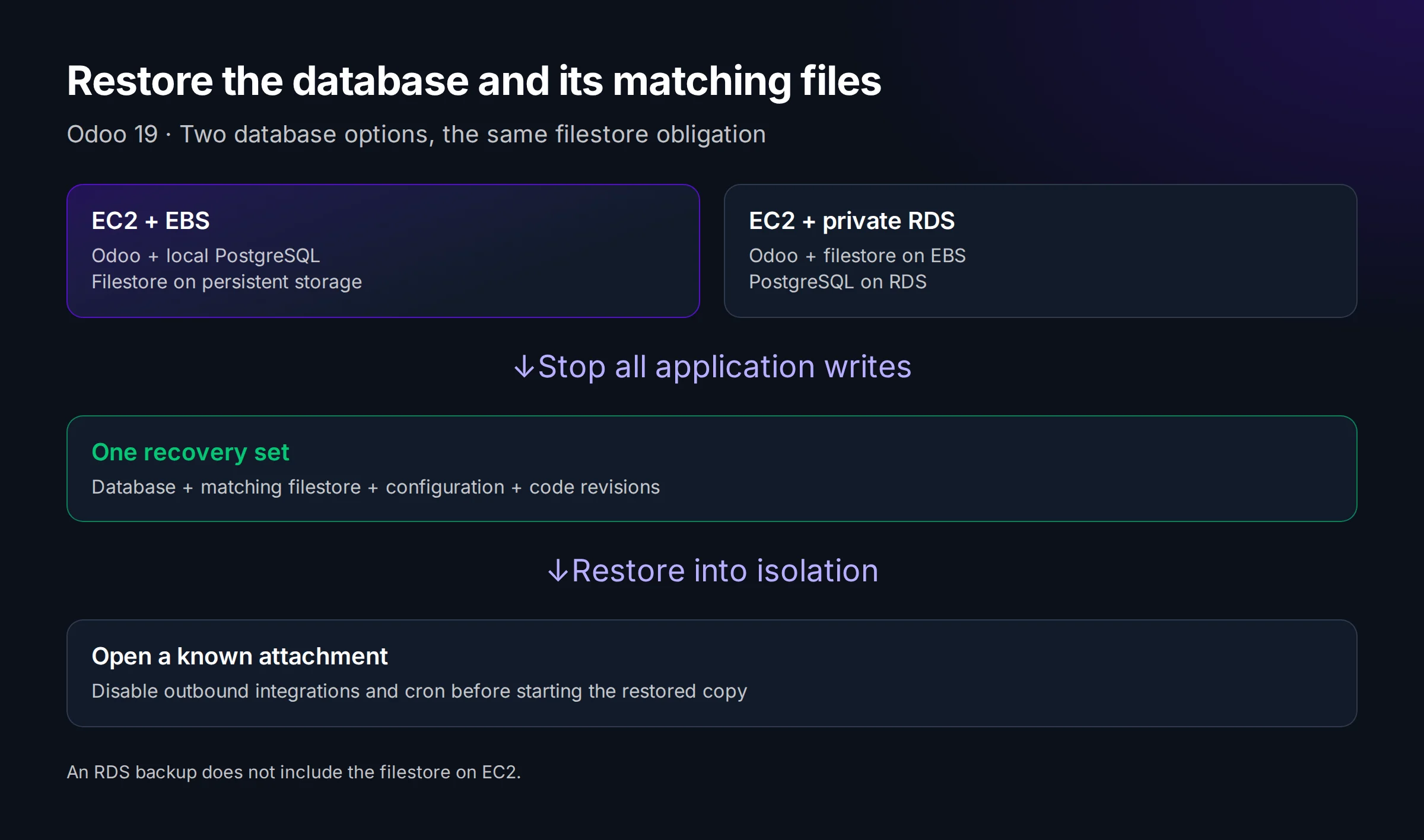
| Database location | What you operate | What remains to recover |
|---|---|---|
| PostgreSQL on EC2 | OS, PostgreSQL, storage and backups | Database, filestore, configuration and code |
| PostgreSQL on RDS | Application server and database configuration; AWS handles the database host | RDS database plus the matching filestore on EC2 |
Keep RDS private. Permit port 5432 from the application security group, rather than from the internet. Moving PostgreSQL does not move the attachment files or make the application highly available. One application server remains one application server.
2. Size for your jobs rather than the instance label#
Choose CPU and memory from representative imports, reports and concurrent requests. The Odoo 19 deployment guide (nouvel onglet) gives (CPU × 2) + 1 as a worker rule of thumb and explicitly includes CPU needs for cron workers. That is a starting estimate, not a guarantee for your custom code.
Budget for PostgreSQL and the OS as well as HTTP workers. limit_memory_hard limits a worker's virtual memory; it does not reserve physical RAM, so a worker count copied from a larger machine can make a small instance fail sooner while each worker remains below its individual threshold. Measure the host too.
The t3.medium used in our price calculation is a burstable instance. We use it to explain the bill, not recommend production capacity. Watch CPU credits during sustained work and include possible surplus-credit charges. If your workload keeps the CPU busy, compare a non-burstable instance instead of treating the advertised vCPU count as sustained capacity.
Record disk growth separately for PostgreSQL and attachments. Leave space for dumps and maintenance operations. A volume that fits today's production data may not fit tomorrow's backup staging directory, and replacing EC2 will not rescue a full filesystem.
3. Install privately, then open only the proxy#
Prepare a Linux EC2 host with Docker Engine and the Compose plugin installed. Use an IAM role for required AWS access, rather than storing an access key in your application directory. Restrict administration to your management network or a configured Session Manager connection. Do not allow SSH from everywhere just to finish installation faster.
Follow the Docker Compose installation and restore procedure for volume layout, separate PostgreSQL credentials and initialization. That article targets Odoo 20: for this Odoo 19 deployment, replace its Odoo image with an official odoo:19.0 build and record the pulled digest. Keep PostgreSQL 16 and use Odoo 19-compatible add-ons only. These are new-database instructions, not a downgrade procedure.
For the Compose service named web, set workers according to your measurements, select the database with db_name and dbfilter, and disable its listing with list_db = False. Keep the Odoo master password separate from the PostgreSQL credentials. Never commit either secret.
Bind the host ports to 127.0.0.1:8069 and 127.0.0.1:8072. Run Nginx on the host, terminate HTTPS there, and route /websocket to 8072 in multi-process mode. Activate proxy_mode only behind that trusted proxy. Block /web/database at the proxy as well.
Allow public 443 in the EC2 security group. Open 80 only if your HTTP redirect or certificate-validation method needs it. Do not publish 5432, 8069 or 8072 to the internet. From another machine, check your own host:
curl -I https://erp.example.com/web/login
curl -sS -o /dev/null -w '%{http_code}\n' \
  https://erp.example.com/web/database/manager
Expect the manager route to return 403 with the proxy block above. Also inspect the websocket upgrade in the browser: its expected status is 101. Check the closed internal ports from outside, including IPv6 if enabled. A successful login alone leaves those paths untested.
4. Make the RDS decision before loading production data#
Keep PostgreSQL local when one host is an acceptable failure boundary and your team can patch and restore it. Use RDS for a specific database-operation requirement, not because an architecture diagram looks more serious with another box.
For RDS, create a supported PostgreSQL instance in private subnets and a dedicated Odoo database role. Do not run the application with the RDS master account. Configure db_host, db_port, db_user and db_password through your protected deployment configuration, along with TLS certificate validation suitable for your RDS endpoint.
Check available connections on the chosen RDS class. Odoo's db_maxconn is a pool setting per process, not a server-wide total: include HTTP workers and cron activity when comparing it with PostgreSQL's max_connections. Leave administrative headroom and measure actual connections under load before increasing either limit.
A restored RDS database must meet its matching filestore. Pick and test that pairing procedure before cutover. Restoring database rows to a later point while leaving older attachment files on EBS can produce records whose files cannot be opened.
5. Create a recovery set while writes are stopped#
For the single-host Compose variant, stop every Odoo writer before dumping PostgreSQL and archiving its filestore. That includes scheduled jobs and any other process writing to this database. An EBS snapshot taken independently of a database backup is not proof that the two capture the same application state.
From the Compose directory, in a dedicated Bash shell, the following creates one set for database erp. It assumes the db and web services and volumes in the linked Docker procedure, with local PostgreSQL:
set -eu
umask 077
backup="backups/$(date -u +%Y%m%dT%H%M%SZ)"
mkdir -p "$backup"
docker compose stop -t 120 web
trap 'docker compose start web' EXIT
docker compose exec -T db pg_dump -U odoo -Fc erp > "$backup/db.dump.part"
docker compose run --rm --no-deps --entrypoint tar web \
  -C /var/lib/odoo -czf - filestore/erp > "$backup/filestore.tar.gz.part"
mv "$backup/db.dump.part" "$backup/db.dump"
mv "$backup/filestore.tar.gz.part" "$backup/filestore.tar.gz"
sha256sum "$backup/db.dump" "$backup/filestore.tar.gz" > "$backup/SHA256SUMS"
Treat sets containing .part files as incomplete. Encrypt and copy completed sets off the host with retention protected against deletion by the application's credentials. Save the image digests, configuration and module revisions too. This command block does not apply unchanged to RDS.
Restore to an isolated machine with outbound integrations disabled. Import the dump into an empty database, restore the matching filestore, then start Odoo with cron disabled. Open a known attachment and generate a report. Record elapsed recovery time and the age of recovered data; those measurements tell you whether your recovery objectives are credible.
6. Price the server and the work separately#
For Linux On-Demand in Paris, the AWS EC2 price catalog (nouvel onglet) lists t3.medium at USD 0.0472/hour and gp3 storage at USD 0.0928/GB-month. The AWS VPC catalog (nouvel onglet) lists an in-use public IPv4 address at USD 0.005/hour. AWS quotes these rates in dollars; no euro conversion is assumed.
| Example assumption | Monthly calculation, USD |
|---|---|
| One t3.medium, 730 hours | 34.456 |
| Total provisioned gp3 storage, 50 GB | 4.640 |
| One public IPv4, 730 hours | 3.650 |
| Subtotal, before tax | 42.746, rounded to 42.75 |
This excludes RDS, snapshots, backup storage, outbound traffic, additional disk performance, CPU surplus credits and labor. Do not call that subtotal the total cost of running Odoo. Put your actual RDS class and backup retention into a regional estimate if you choose the split architecture.
Assign someone to OS and database patches, certificate renewal, disk alerts and restore exercises. The Odoo hosting comparison helps weigh that work against other options. To test your modules on a self-service platform instead, try Ofleet with a separate test instance and compare the deployment work you keep.
Read next
 odoohosting
Odoo server maintenance: tasks your team can own
Own your Odoo server maintenance: assign monitoring and backup tasks, test an isolated restore, and record evidence before the next production incident.November 5, 202610 min readBy The Ofleet teamRead article odoohosting
Odoo Docker: from Compose to a working restore
Odoo Docker with Compose: run Odoo 20, route websocket traffic, back up PostgreSQL and the filestore together, and check a restored attachment.November 3, 20269 min readBy The Ofleet teamRead article odoohosting
Odoo security: a verifiable self-hosting checklist
Odoo security for self-hosted instances: verify database manager isolation, proxy settings, two-factor authentication and recoverable backups.November 2, 20266 min readBy The Ofleet teamRead article